
 Bobby Wilson
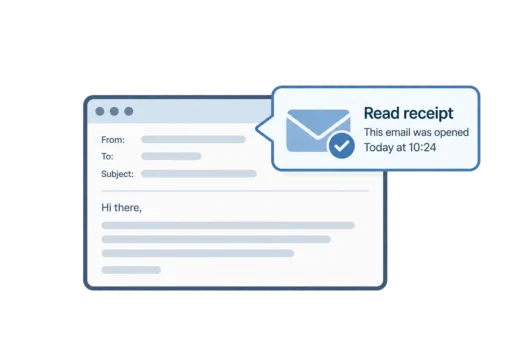
An email read receipt is a notice that tells you when someone opens an email you sent. You must request one, and recipients can often choose whether to send it.
A read receipt does not guarantee that the person actually read your message. Whether you receive one depends on the email service and its settings. The recipient’s email app also matters.
How Do Email Read Receipts Work?
When you request a read receipt, the request travels with your message. If the recipient’s email app supports it, they may see a prompt asking whether to send one. If they agree, you receive a notification.
When a receipt is sent, it often appears as another email. It may show the date and time associated with opening your message. This does not prove that the person understood what you wrote.
If the recipient declines, you usually receive no confirmation. Some systems skip the question and send receipts automatically, depending on their settings. This is why a receipt request does not always behave in the same way.
What Is the Difference Between a Read Receipt and a Delivery Receipt?
A delivery receipt has a different meaning. It confirms that your message reached the recipient’s mail server. A mail server is a computer system that handles email. As part of how email works, one mail server passes the message to another.
Delivery does not mean someone opened your message. If your email cannot be delivered, you may receive a failure notice instead. This is often called a bounced email. A delivery receipt is different from that failure notice, and neither tells you whether anyone read the content.
Does Gmail Have Read Receipts?
Ordinary personal Gmail accounts do not offer built-in read receipt requests. Gmail read receipts are available only to eligible work or school accounts using Google Workspace. An administrator must enable the feature.
An administrator is someone who manages your organisation’s email settings. They can limit who receives receipts and decide whether recipients must approve them. You may therefore not see the option, even if you use Gmail at work or school.
If your account has the feature, open a new message in Gmail on a computer. Click More options (the three dots) at the bottom right and choose Request read receipt. Send the email with the request included.
When someone opens your email, they may see a prompt asking whether to send a receipt. Some settings allow receipts to be sent automatically. If you receive nothing, you cannot assume they ignored your message.
How Do Outlook Read Receipts Work?
You can request Outlook read receipts in supported versions of Outlook for Windows. You can also request them in Outlook on the web for work or school accounts. When writing an email, open Options or More Options. Look for Request a Read Receipt and Request a Delivery Receipt.
These are separate choices. The first requests a notice when your email is opened. The second requests confirmation of delivery. The recipient can usually decline to send a read receipt, and some email apps do not support these requests.
You cannot request a read receipt in Outlook.com in a web browser. The Outlook mobile app also does not let you request read receipts.
Why Are Email Read Receipts Unreliable?
Apple Mail does not offer a standard built-in option to request read receipts. Other services and apps may not offer them either. You might send an email to someone whose app never responds to receipt requests.
Even when read receipts are supported, you can get different results. Some apps send a receipt automatically, some ask permission and others ignore the request. These differences between webmail and email clients help explain why you get receipts from some people but not others.
You might receive a receipt even when someone has not read your message carefully. Some apps send a receipt as soon as a message is marked as read, even if the person only glanced at it in a preview. A missing receipt does not prove your email went unread.
If you need confirmation, ask the recipient to reply to the email instead. Their reply can confirm that they received your message. This avoids treating a technical notice as proof of reading.
How Are Tracking Pixels Different From Read Receipts?
Email tracking pixels are different from read receipts. An email tracking pixel is a tiny image placed inside a message, often too small to notice. When you open an email, your app may load that image from the internet. This may tell the sender’s system that the message was opened.
This method is common in marketing emails. Unlike a normal read receipt, it may collect information without showing you a request for permission. It can also fail or produce misleading results if images are blocked.
If you use Mail Privacy Protection in Apple Mail, it loads images in advance, even for emails you never open. This can make an email look opened to the sender when you have not read it.
To reduce this kind of tracking, you can set your email app not to load remote images automatically. Remote images are pictures downloaded from the internet when you view an email. Blocking them reduces image-based tracking but can also hide pictures that belong in the email.
Do Read Receipts Affect Your Privacy?
A read receipt can reveal when you opened or marked a message as read. The reported opening time is a type of email metadata. This is information about an email rather than the words inside it. That is one reason email privacy involves more than protecting what your messages say.
Requesting read receipts for routine personal messages can feel intrusive. You may feel pressure to reply once someone knows you opened their email. You do not have to send a receipt when your email app gives you the choice.
Some private email providers block known tracking images by default, while others let you control whether remote images load. These protections concern tracking pixels, not necessarily read receipt requests.