
 Bobby Wilson
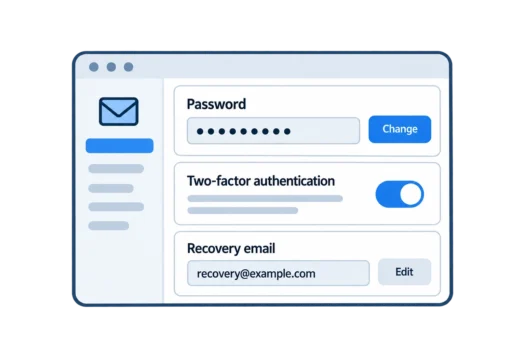
You secure your email account by using a strong, unique password, turning on two-factor authentication, keeping your recovery details up to date and checking regularly for anything you do not recognise. This matters because your email account can be used to reset passwords for almost every other account you have.
Your inbox may hold personal messages, payment receipts and links to other services. Understanding how an email account can be hacked helps explain why these precautions matter, even if you have never noticed anything suspicious. The checks below apply whether you use email on a phone, tablet or computer, and many only need reviewing occasionally.
Use a Strong, Unique Password
Use a long password that is difficult to guess and used only for your email account. Aim for at least 12 to 16 characters, rather than a short password based on names, birthdays or common words. A passphrase made from several random, unrelated words can make a long password easier to remember.
Never reuse your email password anywhere else. If a website suffers a data breach, meaning stored information is exposed without permission, criminals may try leaked passwords on other services, including your email. If you have reused a password, change it on every affected account. If you use Gmail, start by changing your Gmail password, then update any other account that shared it.
You do not have to memorise a different strong password for every account. A password manager is an app that creates strong passwords, stores them securely and fills them in when you sign in, so you usually only remember one main password. Examples include Proton Pass, Bitwarden, 1Password, and the password managers built into Apple and Google devices. Your password manager’s main password and your email password must be strong and never reused, and both accounts should have two-factor authentication enabled.
(offer box)
Turn On Two-Factor Authentication
Two-factor authentication, or 2FA, adds a second check when someone tries to sign in, beyond just knowing your password. Depending on the provider, this could be a code from an authenticator app, a prompt on a trusted device or a physical security key. Two-factor authentication for email makes a stolen password less useful because someone else would also need to get past that second check. Keep any recovery codes your provider gives you in a safe place, separate from the email account they protect.
Keep Your Recovery Details Up to Date
Your recovery email address is a second address your provider can use to help you regain access if you forget your password or get locked out. Make sure your recovery email address is one you still use and can sign in to, rather than an abandoned account. If you have added a recovery phone number, check that it is current and belongs to you. Outdated details can make getting back into your account harder, especially after losing a phone or changing your number.
Check Which Devices Are Signed In
Most email providers let you review the devices or sessions currently signed in to your account. A session means an active sign-in, which may stay open on a phone, tablet or computer even when you are not using it. Check the list from time to time and sign out of devices you do not recognise, as well as old devices you no longer own. If you find an unfamiliar sign-in, change your password and check the account’s security settings rather than assuming it is harmless.
Review Connected Apps and App Passwords
Some apps and services are allowed to connect to your email account so they can read messages or manage your inbox. This includes some email clients, which are apps used to access your email rather than the provider’s website. Review these connections and remove access for anything you no longer use or recognise. Also check for app passwords, which are special passwords created for certain apps, and remove old ones so they cannot still be used to access your email.
Check Forwarding Rules and Filters
Email forwarding automatically sends incoming messages to another address, while filters are rules that move, label, delete or forward messages based on conditions you choose. Both are useful features, but someone with access to your account could change them without you noticing. Review your forwarding settings and filters for addresses or rules you do not recognise, especially ones that quietly copy your messages or hide security alerts. If you find an unfamiliar rule, remove it and check your account for other changes.
Learn to Spot Phishing and Fake Sign-In Pages
Phishing is when someone uses a misleading message or website to trick you into giving away information, such as a password or sign-in code. A message may pretend to be from your email provider and claim you need to act immediately to keep access to your account. Understanding phishing emails and how to tell whether an email is genuine can help you spot unusual sender addresses, unexpected links and fake sign-in pages. If you are unsure, open your provider’s website or app yourself instead of signing in through the message.
Check for Data Breaches and Reused Passwords
Check whether your email address has appeared in a known data breach using a reputable breach-checking service. An address appearing in a breach does not necessarily mean someone has accessed your inbox, but you should find out whether a password was exposed. If it was, replace that password everywhere you used it and do not reuse it again. For future sign-ups, an email alias is an additional email address that can help you keep your main address separate from accounts you create online.
Keep Your Devices and Apps Updated
Software updates fix problems that could otherwise leave devices, browsers and email apps open to attack. Keep your phone, computer, web browser and any email apps up to date, including installing security updates when they become available. Protect each device with a screen lock so someone who picks it up cannot open your inbox.
Be Careful on Shared or Public Computers
On a shared or public computer, another person might be able to use an account that you left signed in. Avoid saving your email password in the browser, and sign out of your account when you finish rather than just closing the window. If the computer is not yours, avoid accessing sensitive messages when possible, particularly if you cannot trust how the device is maintained.
Choosing a More Secure Email Provider
Some email providers are built around privacy and security, with features such as encrypted email that can help protect what your messages say. A private email provider focuses on limiting how much information about you and your messages the service can access or collect. These features vary between providers and do not replace protecting your account with a strong password and two-factor authentication.
What to Do if You Think Someone Has Access to Your Email Account
If you notice messages you did not send, unfamiliar sign-ins, recovery details you did not change or forwarding rules you did not create, treat the account as potentially compromised. Start by changing your password from a device you trust, then sign out of other sessions and check your recovery details, connected apps and forwarding settings. Make sure two-factor authentication is enabled and review other accounts that use the same password or rely on this email address for password resets. If you cannot sign in or the changes keep returning, use your provider’s official account recovery process and follow the steps for what to do if your email has been hacked.