
 Bobby Wilson
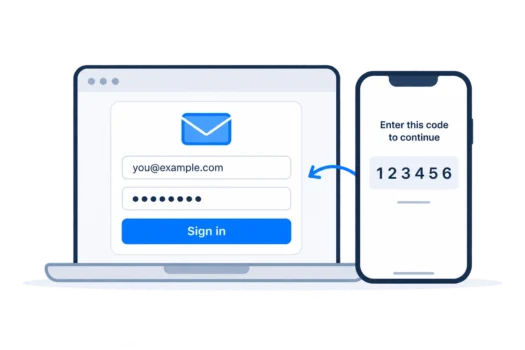
Two-factor authentication (2FA) means signing in to your email with your password plus a second check, such as a code on your phone, so someone who learns your password still cannot get in. Many services also call it two-step verification.
It adds another layer between your password and your inbox. The exact second step depends on the email provider and the sign-in method you choose.
Why Two-Factor Authentication Matters for Email
Email is especially important to protect because it is often used to reset passwords for other accounts. If someone gets control of your inbox, they may be able to request password-reset messages for shopping, social media, banking and other services.
Passwords can be stolen or reused after they appear in a data breach. Two-factor authentication helps because knowing the password alone is no longer enough. It is one of the most useful protections against the common ways email accounts get broken into.
This does not mean your account becomes impossible to compromise. It means an attacker usually needs both your password and the second sign-in method.
The Main Types of Second Step
Not every second factor gives the same level of protection. A rough order from weaker to stronger is:
- Text-message code: the provider sends a short code by SMS to your phone number. This is better than relying on a password alone, but text messages can sometimes be intercepted and phone numbers can be taken over through SIM-swap attacks.
- Authenticator app: an authenticator app is an app that generates short, changing sign-in codes on your phone. The code is created by the app rather than sent through the mobile phone network.
- Sign-in prompt: your provider sends a notification to a trusted phone or app asking you to approve the sign-in. Some prompts also ask you to match a number shown on the device where you are signing in.
- Passkey or security key: a passkey is a sign-in credential stored on a trusted device or password manager and unlocked with something such as your fingerprint, face or device PIN. A security key is a small physical device that you connect or hold near your device to prove it is really you.
Passkeys and physical security keys can provide stronger protection against phishing because they are designed to work with the genuine website or service rather than asking you to type a reusable code. Text-message codes are the weakest option in this group, but they are still much better than having no second step at all.
Backup Codes and Recovery Options
Backup codes are one-time codes you save in case your normal second factor is unavailable. For example, they can help if your phone is lost, damaged or replaced. Keep them somewhere secure and separate from the device you normally use for 2FA.
A recovery email address or recovery phone number can also help you prove that an account belongs to you if you lose access to your usual sign-in method. The exact recovery process depends on the provider, and recovering a Gmail account can involve different checks depending on what recovery information is available.
Do not treat recovery details as unimportant just because 2FA is switched on. An old recovery email or phone number that you no longer control can create problems when you need to get back into the account.
What Two-Factor Authentication Does Not Protect Against
Two-factor authentication cannot protect you if you willingly give the second factor to an attacker. A convincing fake sign-in page can ask for your password and then immediately ask for the 2FA code, allowing the attacker to try to use both while the code is still valid.
Never give a 2FA code to someone who contacts you by email, phone, text message or chat. A legitimate sign-in code is for the sign-in you started yourself, not something to send to another person.
2FA also does not replace good password habits. If you believe your password has been exposed, changing your Gmail password or the password for whichever provider you use is still important.
What Is an App Password?
An app password is a separate, automatically generated password that lets an older app or device sign in when it cannot handle your account’s normal second step. You might come across one when using an older email app or client or a device that connects directly to your mailbox using a protocol such as IMAP.
An app password is not your normal email password and is usually entered once into the app or device. Modern apps that support the provider’s normal secure sign-in method generally do not need one.
For Gmail, app passwords are available only when 2-Step Verification is turned on. You will find App passwords in your Google Account’s security settings, within 2-Step Verification, or by typing “App passwords” into the search bar at the top of your Google Account. The option does not appear for every account, for example some work, school or high-security accounts.
For a personal Microsoft account used with Outlook.com, app passwords are available when two-step verification is turned on. An Outlook app password is found under Advanced security options > App passwords. Work or school accounts may handle app passwords differently, and an administrator can prevent them from being used.
App passwords can be revoked separately from your normal password, so removing one does not require you to change the main account password. If an old app password is removed, the app or device using it will need a new sign-in method or a newly generated app password.
Turning On 2FA for Your Email
Two-factor authentication is normally found in the security or sign-in settings for your email account. Setup usually takes only a few minutes and involves choosing a second method, confirming that it works and saving any backup codes the provider gives you.
Once it is enabled, keep your recovery details up to date and review devices or sign-in methods you no longer use. These are part of the wider steps you can take to keep your email account secure.
If somebody has already gained access to the account, adding 2FA is only one part of the response. You should also check what to do if your email has been hacked, including reviewing account changes, sessions and recovery details.