
 Bobby Wilson
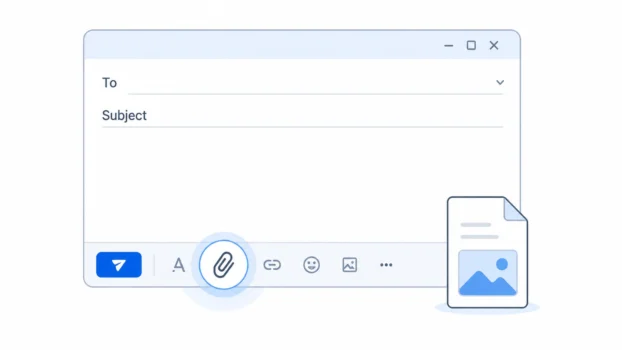
To attach a file to an email, start or open the message, select the attachment control, which is commonly shown as a paperclip, and choose the file from your device. Wait for it to attach, check that the correct file appears in the message, then finish the email and select Send.
How to attach a file to an email
An email attachment is a file added to an email message. It can be a photograph, PDF, document, spreadsheet or another supported file saved on your device.
The basic process is:
- Start a new email or open the reply you are writing.
- Select the attachment or paperclip control.
- Choose the file.
- Wait for it to finish attaching.
- Check that the correct file appears.
- Finish the message and select Send.
When you select the attachment control on a computer, a file-selection window will normally open. This is the window that lets you find files saved on your computer.
Find the folder containing the file and select it. For example, you might choose document.pdf from your Documents folder or photograph.jpg from your Pictures folder.
Your email service will then add the file to the message. This may involve uploading it, which means transferring a copy of the file from your device so that it can be sent with the email.
Check that the file appears in the draft. You may see its filename, an attachment box or a preview of the file. If your email service shows that the file is still uploading, it is usually best to let it finish before sending.
Once the file has finished attaching, the remaining process for sending an email is the same: check the recipient and message, then select Send.
Where is the attachment button?
The attachment control is commonly represented by a paperclip.
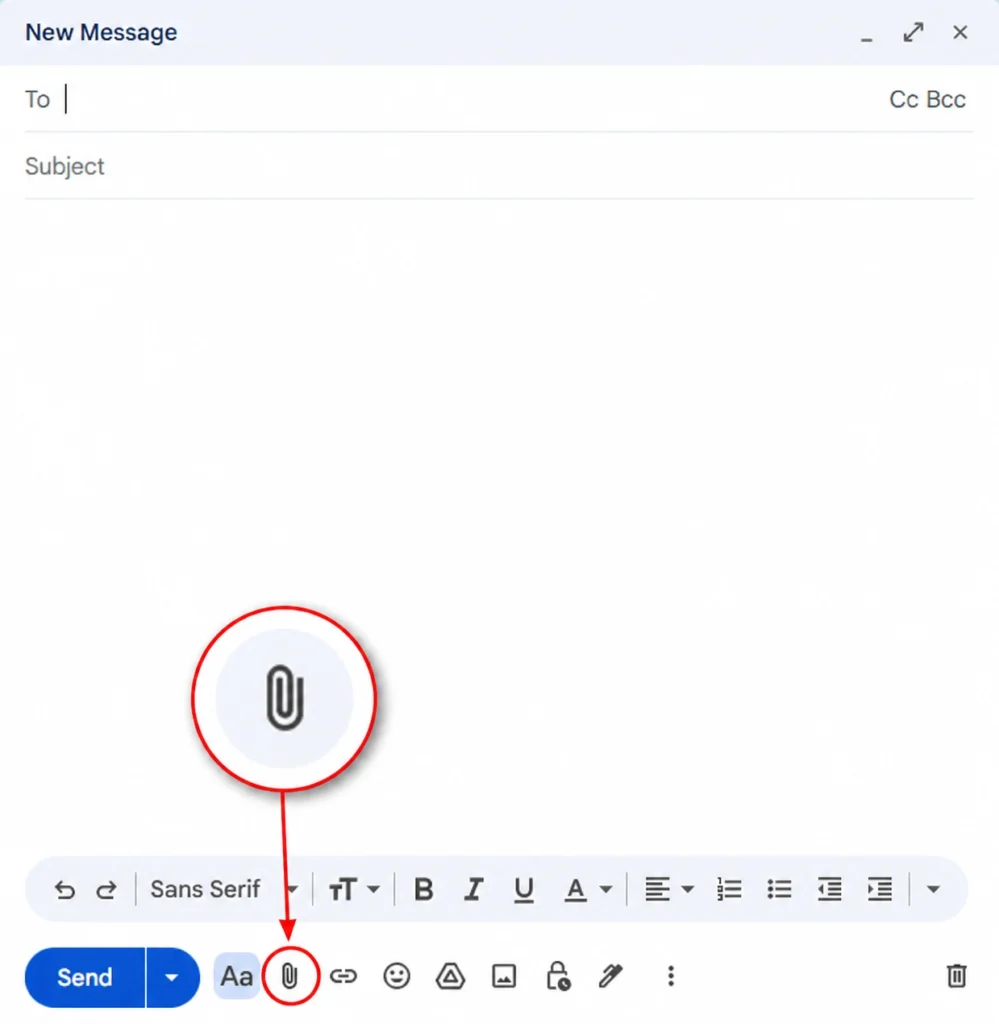
Its exact position depends on the email service and device you are using. It may be labelled Attach, Attach file or Attachments, or it may appear only as an icon.
For example, Gmail and Outlook include attachment controls in the window where you write the message. Apple Mail also provides an attachment control. Other email services may place it somewhere different.
If you cannot immediately see it, look around the area where you write the email or near the other controls used for adding things to the message.
How to attach a photo, PDF or document
You normally use the same attachment process whether you are sending a photo, PDF, Word document, spreadsheet or another supported file.
The difference is usually where you find the file.
A PDF or document may be stored in Documents, Downloads, Files or another folder on your device. A photograph may instead be stored in your Photos or Pictures library.
On a phone or tablet, the email app may give you separate choices for files and photographs. Some apps also let you take a new photograph with the camera and add it directly to the email.
Photos can sometimes appear inside the body of the email instead of as a separate attachment. This depends on the email app. In Gmail on an iPhone or iPad, for example, selecting one photo inserts it into the message by default. You can select the photo and choose Send as attachment if you want it added as an attachment instead.
You do not normally need a different process simply because the file is called completed-form.pdf, notes.docx or photograph.jpg.
How to attach more than one file
Most email services allow several files to be attached to the same message.
Depending on your device, you may be able to select several files at the same time. You can also select the attachment control again and add more files separately.
Check that every file you intended to send appears in the email before sending it.
Email services also limit the total size of attachments. Several smaller files can therefore become too large when their sizes are added together.
How to remove an attachment
If you attach the wrong file, you can remove it before sending the email.
Look beside the attachment for an X, Remove, trash icon or similar control. The exact option depends on the email service.
Removing a normal attachment from the draft removes that copy from the email. It does not normally delete the original file saved on your device.
You can then select the attachment control again and choose the correct file.
What if the file is too large to email?
There is no single maximum attachment size for email. Each email provider sets its own limits, and limits can also vary between different types of accounts.
For example, personal Gmail accounts allow up to 25 MB of attachments in a message. Proton Mail lists a 25 MB limit for outgoing attachments. Outlook.com has a 25 MB limit for the complete email, including its text and attachments. Apple Mail normally uses the attachment limit set by the email account provider.
Remember that several attachments can count towards the limit together. Five smaller files may therefore be too large even if none of them is particularly large on its own.
What happens when the limit is exceeded also varies. Gmail can replace attachments above its normal limit with a Google Drive link. Apple Mail can use Mail Drop to upload a large attachment to iCloud and let the recipient download it. Outlook also allows files to be shared as OneDrive links instead of conventional attachments.
Other email services may simply tell you that the file is too large.
If this happens, you can remove unnecessary attachments, reduce the size of the file or use a file-sharing link supported by your email service. The recipient’s email service may also have its own size limits, so a very large conventional attachment can sometimes be rejected even if your service allows you to send it.
Attaching a file from a phone
Attaching a file from a phone or tablet follows the same basic process as it does on a computer, but the choices shown after you tap the attachment control can be different.
Tap the attachment control and choose where the item is stored. Depending on the email app and device, the choices may include:
- Files.
- Photos or a photo library.
- Recent files.
- The camera.
- Other storage locations available on the device.
Select the file or photograph you want to send and check that it has been added to the message.
If you are replying to an email, you can add a new file to the reply using the same attachment process.
Check the attachment before sending
Before sending the email, check:
- Is it the correct file?
- Has it finished attaching?
- Is it the correct version of the file?
- Did you attach every file mentioned in the message?
- Is the recipient correct?
- Are you comfortable sending that file to that recipient?
It is worth checking the filename if you are unsure which version you selected. Once everything is correct, finish the message and select Send.