
 Bobby Wilson
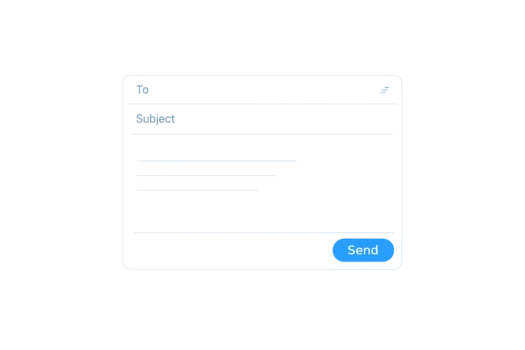
To send an email, open your email account and select Compose, New message or New mail. Enter the recipient’s email address in the To field, add a short subject and write your message. Check that the address and message are correct, then select Send.
How to send an email step by step
Email services have different layouts, but the basic process is broadly the same in Gmail, Outlook, Proton Mail, Apple Mail and most other email applications.
1. Open your email account
Open the website or application you normally use for email and sign in.
For example, you might open Gmail or Outlook in a web browser or use an email application on your computer or phone.
You need an email account before you can send a message. Anyone without one must first create an email account.
2. Select Compose, New message or New mail
Look for the button used to start a new email.
Depending on the service, it may be labelled:
- Compose
- New message
- New mail
Gmail uses Compose, while other services may use slightly different wording.
Selecting this button opens a blank message window where you can enter the recipient, subject and message.
3. Enter the recipient’s email address in the To field
The recipient is the person who will receive the email.
Enter their complete email address in the To field. For example:
firstname.lastname@example.com
An email address identifies the account that should receive the message.
Check the address carefully. A missing letter, extra character or incorrect ending may stop the message from reaching the correct person.
4. Add a short subject
Enter a brief description of the message in the Subject field.
The subject tells the recipient what the email is about before they open it.
For example:
- Meeting time
- Saturday plans
- Question about the booking
- Photograph from yesterday
Keep the subject short and specific. You do not need to write the complete message in this field.
5. Write the message
Select the large message area and type what you want to say.
A simple email normally contains a greeting, the reason for writing and your name or sign-off.
The wording and structure of writing an email include choosing an appropriate greeting, tone and sign-off. This page focuses on the steps used to send the completed message.
6. Check the address and message
Before sending the email, check:
- The recipient’s address is correct.
- The subject matches the message.
- The message says what you intended.
- Names, dates and times are correct.
Reading the message once before sending can help you notice simple mistakes.
Pay particular attention to the address. An email sent to the wrong address may reach another person or fail to arrive.
7. Select Send
When the message is ready, select the Send button.
The button is normally shown near the bottom or top of the new-message window, depending on the email service.
After you select Send, the compose window usually closes and the message moves to the Sent folder.
A simple example of an email
Here is an example of a complete basic email:
To: firstname.lastname@example.com
Subject: Meeting time for Tuesday
Hello,
Are we still meeting at 2 pm on Tuesday? Please let me know if another time would be better.
Thanks,
First name
The recipient’s address goes in the To field. The subject briefly explains what the message is about. The main message contains a greeting, the reason for writing and a sign-off.
How to send an email in Gmail
In Gmail, select Compose on the left side of the inbox. Enter the recipient in the To field, add a subject, write the message and select Send at the bottom of the compose window.
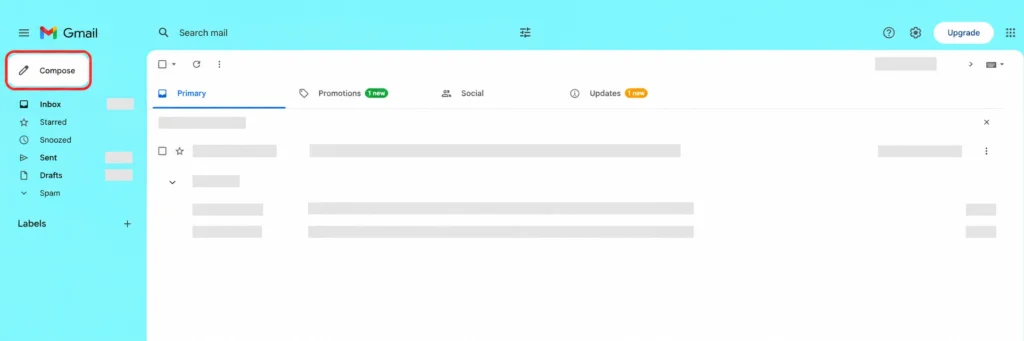
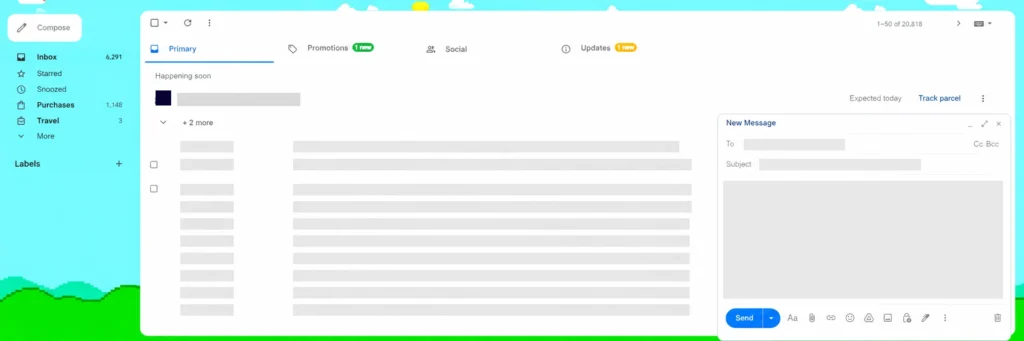
Outlook, Proton Mail, Apple Mail and other email services may position these controls differently, but the process remains broadly the same.
How to send an email from a phone
Sending an email from a phone follows the same basic process:
- Open the email application.
- Tap Compose or the new-message symbol.
- Enter the recipient’s address.
- Add a subject.
- Write the message.
- Check the address and message.
- Tap Send.
The Compose control may appear as a button or a pencil-shaped symbol. Its position depends on the email application.
The Send control is normally shown near the top or bottom of the message window. It may be labelled Send or displayed as a paper-aeroplane symbol.
How to check that the email was sent
Open the Sent folder in your email account.
A message that was sent successfully should normally appear there. The folder may be called Sent, Sent Mail or Sent Items, depending on the service.
Seeing the email in Sent normally confirms that your email service processed it as sent. It does not confirm that the recipient received, opened or read it.
What to do if the email does not send
Check that your device is connected to the internet. Without a connection, the message may remain waiting to send until the device reconnects.
Check the recipient’s address for missing letters, spaces or other mistakes.
Make sure you selected Send. If the message is still open in the compose window, it may not have been sent.
Try selecting Send again. If that does not work, close and reopen the email service before trying once more.
The appearance of each email service is slightly different, but the process remains consistent. Open a new message, enter the recipient, add a subject, write and check the message, then select Send.