
 Bobby Wilson
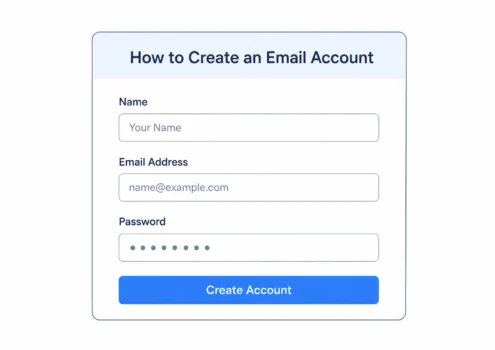
Creating an email account is free and usually takes only a few minutes. You sign up with an email provider, choose an available email address and create a password. The main decision is whether you want a familiar mainstream provider or a privacy-first provider with stronger limits on access to your messages.
The steps to set up your email
An email account gives you a mailbox where you can send, receive and store email. A mailbox is the private area within an email service where your messages are kept. Your email address identifies that mailbox. It has three parts: a name you choose, the @ symbol and the provider’s domain.
A domain is the part after the @ symbol that identifies the email service. For example, the domain in yourname@gmail.com is gmail.com. Each of these parts of an email address does a specific job. The exact screens look different depending on the provider, but the signup process follows the same general steps.
1. Choose an email provider
An email provider is the company that runs the service, stores your messages and gives you access to your mailbox. Common choices include:
- Gmail
- Outlook
- Yahoo Mail
- Proton Mail
- Tuta
You do not need to understand every difference before making an account. You can choose a familiar provider and start using email immediately. However, it is worth knowing that providers differ in how they handle privacy, storage and other features. The main differences are explained later in this article.
2. Go to the provider’s signup page
Use the provider’s official website or app and look for an option such as:
- Create account
- Sign up
- Register
- Get started
Be careful when searching for a provider online. Check that you are on its real website before entering any personal information or creating a password. The provider will guide you through the process on screen.
You do not need to set up the technical parts of email yourself. If you have already settled on Gmail, our step-by-step Gmail signup walks through the exact screens.
3. Choose your email address
You will normally be asked to choose the name that appears before the @ symbol. For example, if you choose yourname.example and sign up with Gmail, your address might be yourname.example@gmail.com. Each email address must be unique. If somebody already has the name you want, the provider will ask you to choose another.
You might be shown suggested alternatives. These often add numbers, initials or another word to the name you entered. You can accept a suggestion or try a different name.
Take a moment to choose carefully. Changing the name later is not normally as simple as editing a profile. In most cases, you need to create a new email address.
4. Create a strong, unique password
Your password protects the account. It should be difficult for another person or an automated program to guess. Use a password that:
- Is long
- Is not based on an obvious word or date
- Is not used for any other account
- Is stored somewhere safe
A unique password is one that you use for only one account. This matters because a password exposed by one website cannot then be used to enter your email account. A password manager can create and store long passwords for you.
A password manager is an application that keeps your passwords in an encrypted vault, so they cannot be read without unlocking it. Do not use the same password for your email, social media, shopping and banking accounts. Your email address is often used to reset passwords for other services, so protecting it is especially important.
5. Add recovery details
Recovery details help you regain access if you forget your password or become locked out. A provider might ask for:
- A mobile phone number
- Another email address
- A recovery code
- Answers to security questions
A recovery email is another address that can receive a password reset link or account warning. A recovery code is a set of characters that can prove you own the account when your usual login method is unavailable. Some recovery options may be optional during signup, but setting them up is sensible.
Make sure the phone number or email address belongs to you and will remain available. Privacy-first providers may handle account recovery differently because they are designed to have less access to your account and its contents. Follow the recovery instructions carefully and keep any recovery codes somewhere safe.
6. Complete the verification checks
The provider may ask you to prove that you are a real person rather than an automated program. This could involve:
- Entering a code sent to your phone
- Confirming another email address
- Completing a visual check
- Agreeing to the provider’s terms
After verification, your mailbox should be ready to use. You can then send your first message, receive email and sign in on your phone, tablet or computer. The provider will show each step as you go.
You cannot easily get the process wrong. If you choose an address you later dislike, you can create another account and stop using the old one.
How to choose a good email address
Your email address might be used for many years. It can appear on job applications, online accounts, bills, bookings and messages to friends or family. A simple address is usually the easiest to remember and share.
Use some form of your real name
For an address that you can use in most situations, try a version of your name. Examples include:
- firstname.lastname
- firstnamelastname
- firstnameinitiallastname
- firstnamemiddlename
- firstname.lastnameinitial
If your preferred version is unavailable, consider adding a middle initial or another small variation. Numbers are not automatically a problem, but avoid adding a long or random string if you can find a cleaner alternative. An address such as firstname.lastname28 is usually easier to give to someone than firstname19874265.
Avoid names that could become embarrassing
An address that seems amusing now might not look appropriate when you use it for work, education, housing or an official application. Avoid names based on:
- Private jokes
- Insults
- Current relationships
- Temporary interests
- Offensive language
- Excessive numbers or symbols
A neutral address based on your name will normally remain useful for longer. You do not need to make the address sound formal. It only needs to be clear, easy to spell and suitable for the people who may see it.
Check that it is easy to say and type
You may sometimes need to give your email address over the phone or write it on a form. Complicated spellings, repeated punctuation and long strings of numbers make mistakes more likely. Try saying the full address aloud before creating it.
Remember that the domain forms part of the address. Someone emailing you must enter both your chosen name and the correct provider domain.
Consider using more than one address
You can create more than one email account. For example, you might use:
- One address for work, education and official messages
- One address for friends and family
- One address for shopping, newsletters and online accounts
This can make your main mailbox easier to manage. It also reduces the number of companies that know your important personal address. An email alias or burner email can also provide a separate address for shopping and newsletters.
You do not need several accounts when you are starting. One sensible address is enough. You can create another later if it becomes useful.
Which email provider should you choose?
Many people assume that creating an email address means creating a Gmail account. Gmail is one option, but other email providers are available. Email providers can broadly be divided into mainstream providers and privacy-first providers.
Neither group is right for everybody. The best choice depends on whether you value maximum convenience, stronger privacy protections or a balance between the two.
Mainstream email providers
Mainstream providers include Gmail, Outlook and Yahoo Mail. They are widely recognised and designed to work smoothly with many other services. They usually provide large amounts of storage and include tools for organising messages, searching your mailbox and filtering unwanted email.
Gmail connects closely with other Google services. Outlook connects with Microsoft services. Yahoo Mail is a long-established webmail provider, which means you use the service through a website or app rather than managing your own mail server. The main advantages are:
- Free basic accounts
- Familiar names
- Large mailboxes
- Useful search and organisation tools
- Compatibility with many websites and applications
- Easy access across different devices
These providers are a reasonable choice when you want straightforward email that works with almost everything. The privacy trade-off is that the provider controls the system and holds the encryption keys used to protect stored messages. An encryption key is the digital information needed to unlock encrypted data.
This means the provider is technically able to access mail stored on its systems when necessary. That does not mean employees routinely sit and read individual messages. Gmail also stopped scanning email content for personalised advertising in 2017.
Mainstream services still operate within wider businesses that use advertising, account information and service data. Their privacy policies explain what information is collected and how it is used. For most people, this is a choice about preferences rather than a warning that mainstream email is unsafe. Gmail, Outlook and Yahoo Mail can all be used securely when the account has a strong password and two-factor authentication.
Privacy-first email providers
Privacy-first providers include Proton Mail and Tuta. These services are designed to reduce how much access the provider has to the contents of your mailbox. They use automatic end-to-end encryption between users of the same compatible service.
End-to-end encryption protects a message so that it can be read only on the sender’s and recipient’s devices. The service carrying the message does not have the key needed to read its encrypted contents. For example, an email sent from one Proton Mail user to another Proton Mail user can be end-to-end encrypted automatically. Tuta provides similar automatic protection between Tuta users.
This does not mean every email sent to or from a privacy-first account is automatically end-to-end encrypted. Messages exchanged with people using Gmail, Outlook, Yahoo or another normal provider usually rely on standard email encryption while travelling between services. The main advantages of privacy-first providers are:
- Free basic accounts
- Less provider access to stored messages
- Automatic end-to-end encryption between users of the same service
- Business models focused less heavily on advertising
- Privacy protections built into the service
The trade-offs can include:
- Less storage on free plans
- Fewer extra features
- Less integration with other online services
- A provider name that some people may not recognise
The differences between the main private email providers come down to how each one handles encryption and storage.
Try Proton Mail
Which type is best for you?
A mainstream provider is likely to suit you when you want:
- A familiar email address
- Plenty of storage
- Strong connections with other online services
- A simple account that most websites recognise
A privacy-first provider is likely to suit you when you want:
- Stronger limits on provider access to your messages
- Automatic end-to-end encryption with users of the same service
- An email service built primarily around privacy
- Less dependence on an advertising-based company
There is no single correct provider. If you want easy email that works with almost every service, Gmail, Outlook or Yahoo Mail can be perfectly reasonable choices. If you would prefer an email provider that cannot read encrypted messages between its users, Proton Mail or Tuta may be a better fit.
Either type is free to try. You can also keep more than one account. For example, you could use a mainstream address for general online accounts and a privacy-first address for personal conversations.
Keep your new account secure
Creating the account is only the first step. A few email security settings can make it much harder for someone else to enter it.
Use a password you do not use anywhere else
Your email password should be unique. If another website suffers a data breach, criminals may try exposed passwords on popular email services. This is known as credential stuffing, which means automatically trying stolen usernames and passwords on other websites.
A unique password prevents one leaked password from unlocking several accounts. Long passwords are generally stronger than short ones. A password manager can create a random password and remember it for you.
Turn on two-factor authentication
Two-factor authentication adds a second step after your password. The second step might be:
- A code from an authentication app
- A code sent to your phone
- A security key
- A confirmation on another device
An authentication app is an application that creates temporary login codes. A security key is a small physical device used to confirm that the person signing in has possession of it. Two-factor authentication is one of the most effective ways to protect an email account.
Even if someone learns your password, they will still need the second factor to sign in. Save any backup codes provided during setup. Backup codes let you enter the account if your phone or usual authentication method is unavailable.
Keep your recovery information current
An old phone number or inaccessible recovery email may prevent you from resetting your password. Check your recovery details occasionally, especially after changing your phone number or closing another email account. Do not share recovery codes with anyone. Store them somewhere separate from the device you normally use to access your email.
Be careful with messages asking you to sign in
Phishing is a scam in which a message pretends to come from a trusted person or company so that you reveal information or open a harmful link. A phishing email may claim that:
- Your account will be closed
- Someone has entered your mailbox
- You must confirm your password
- A payment has failed
- You have received an important document
A genuine email provider will not ask you to reply with your password. When a message says there is a problem with your account, open the provider’s official website or app yourself. Do not rely on the link in the email.
Most accounts are compromised through stolen passwords, phishing and unsafe devices. Knowing how email gets hacked makes those risks easier to avoid.