
 Bobby Wilson
Forwarding sends an email you have received on to someone else. On any email service the steps are the same: open the email, find the forward button, enter the new recipient and send. The only thing that changes between providers is where the forward button sits, and this guide shows you how to find it wherever you are.
The four steps that work on any email service
Forwarding works the same way in every email service, whether you use Gmail, Outlook, Yahoo, Proton Mail, Apple Mail or anything else. Once you know the pattern, you can forward an email anywhere.
- Open the email you want to forward.
- Find and select the Forward button.
- Enter the email address of the person who should receive it.
- Add a note above the message if you want to explain why you are sending it, then select Send.
The one part that differs between providers is step two: where the forward button is. In some services it is visible straight away. In others it is tucked inside a menu. The next section shows how to find it.
How to find the forward button
Most email services put the forward button in one of two places.
Sometimes it is visible as soon as you open the email, often near the reply button at the top or bottom of the message. In that case you simply select it.
Sometimes it is hidden inside a menu, usually shown as three dots (a “more actions” menu) or an arrow. If you open an email and cannot see a forward option, look for those three dots near the reply button and select them. The forward option will normally appear in the menu that opens.
Example: finding it in Gmail
In Gmail the forward button is not shown on its own straight away. You open the email, select the three dots (the “more” menu) at the top right of the message, and then select Forward.
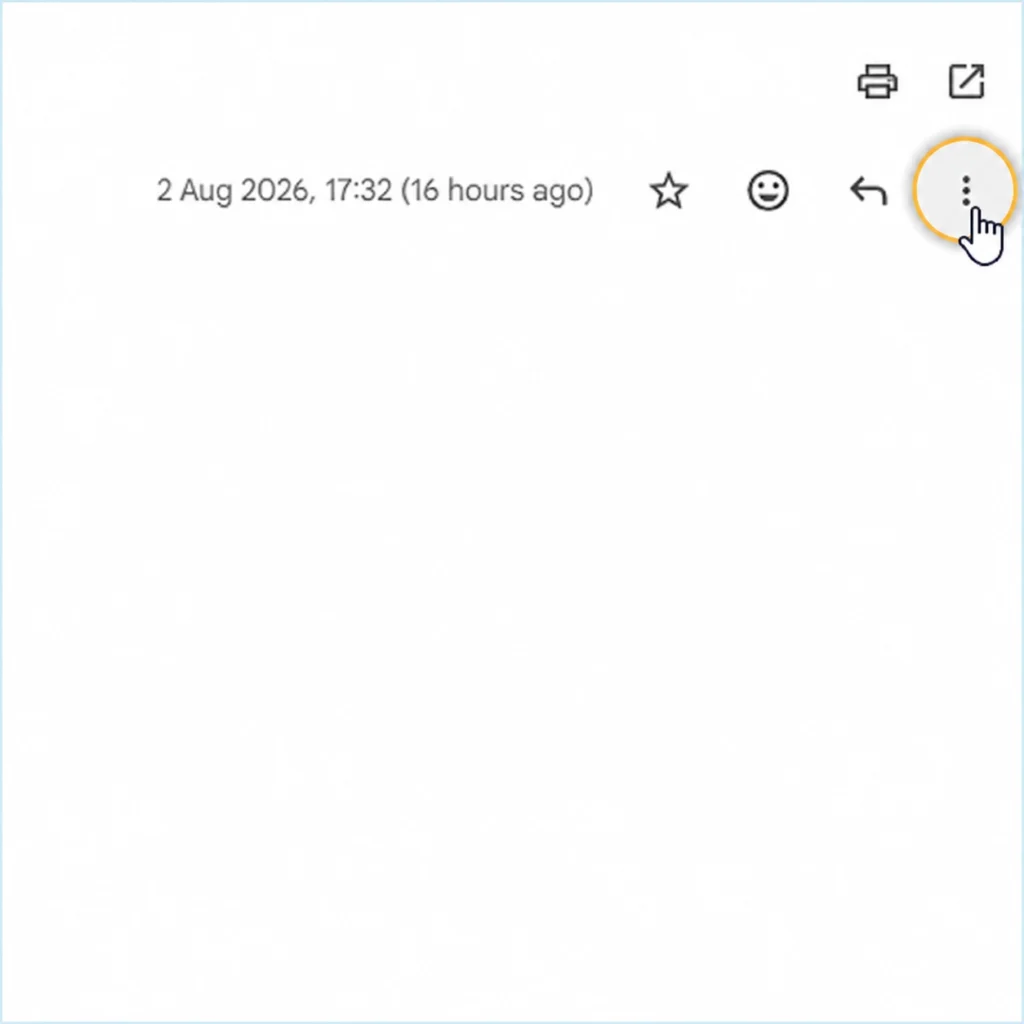
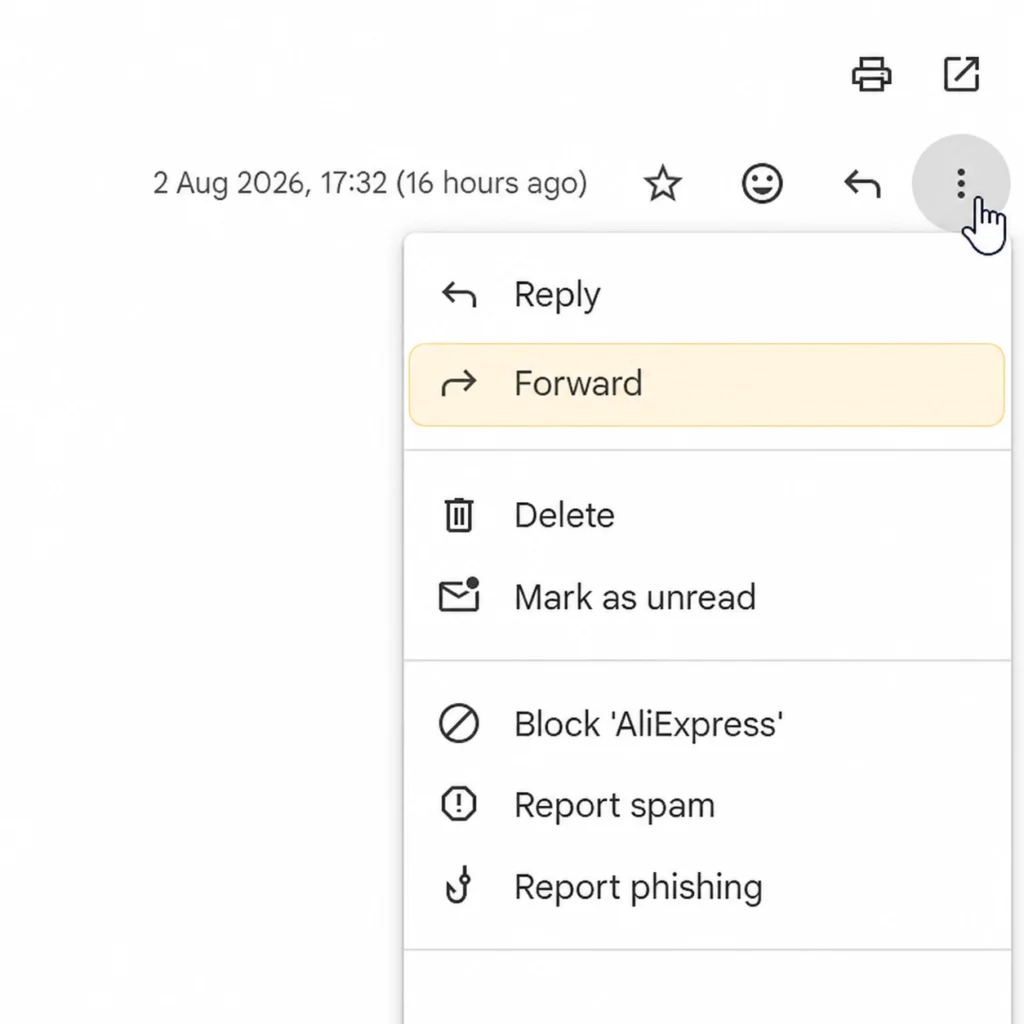
Gmail also shows a Forward option at the very bottom of a message, below the email text, so you can use whichever is easier to reach.
Example: finding it in Proton Mail
In Proton Mail the forward control is easier to spot. When you open an email, the forward button is already visible with the other actions, so you can select it without opening a menu.
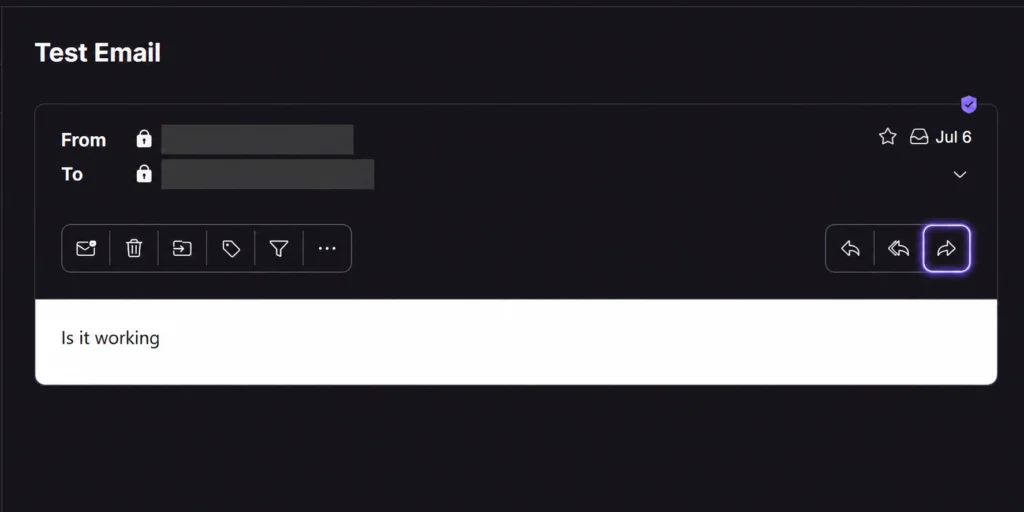
The contrast between the two is the useful lesson: if you do not see a forward button immediately, it is almost certainly inside a three-dots or “more” menu. Look there and you will find it.
After you select Forward
Once you have found and selected Forward, every service behaves the same way.
The email opens in a composer, which is the box used to write and address a message. The original email appears below, and you add the new recipient at the top.
Before you send, check the recipient carefully, especially if the original email contains personal, private or financial information. Forwarding passes on the whole message, including anything quoted further down the thread that you may have forgotten is there.
You can also type a short note above the forwarded text to explain why you are sending it. When you are ready, select Send.
How to set up automatic forwarding
Everything above covers forwarding one email by hand. Automatic forwarding is different: it is a standing rule that passes on future emails for you, as they arrive, without you opening each one.
It is useful when you are moving to a new address, or want mail from one account to arrive in another that you check more often.
Before you switch it on, remember it can forward everything, including password resets, receipts and private messages. Only forward to an address you control and trust.
Automatic forwarding is set up in your email service’s settings rather than on an individual message, and most services ask the receiving address to confirm before it starts. As an example, in Gmail you open Settings, then See all settings, then the Forwarding and POP/IMAP tab, and select Add a forwarding address. Gmail sends a verification link to the destination address, which must be confirmed before forwarding begins. You then choose whether Gmail keeps its own copy of each message or not.

Keeping the original copy is usually the safest choice while you check that forwarding works.
In Proton Mail, automatic forwarding is available on the paid Mail plans rather than the free plan, and is set up under Settings, then Forward and auto-reply, then Add forwarding rule. As with Gmail, the destination address has to accept the request before forwarding starts.
There is one honest privacy point worth knowing here. Proton Mail normally protects mail between its users with end-to-end encryption, meaning only the sender and recipient can read it. If you automatically forward messages to an address outside Proton, they leave that protection and enter the other provider’s system, so they are no longer end-to-end encrypted. It is worth bearing in mind if privacy is the reason you chose Proton in the first place, and it is one of the practical differences between private email providers.
How to forward several emails at once
Forwarding a batch of separate emails is the one thing most services do not make simple. There is usually no single button that merges several emails into one forwarded message.
Where a service does offer a multi-email option, it normally forwards them as attachments: each original email is attached as its own file rather than combined into the body of one message. In Gmail, for example, you tick the emails you want in your inbox, select the More menu at the top, and choose Forward as attachment.
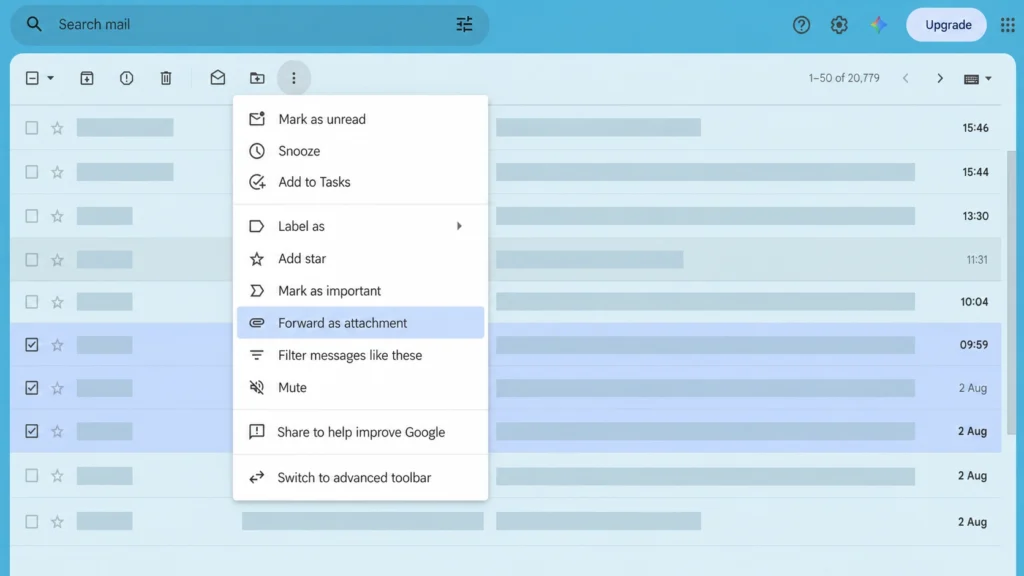
This keeps each original email intact, with its own sender and date, but the person receiving them has to open each attachment separately. If the emails are all part of one back-and-forth conversation, most services can instead forward the whole thread as a single message.
How to check for forwarding you did not set up
This is worth knowing even if you never use automatic forwarding yourself, because it is a common sign of a hacked account.
Someone who gains access to your email can quietly add an automatic forwarding rule that copies your incoming mail to their own address. The original emails stay in your inbox, so nothing looks obviously wrong, and the copying can continue long after they have gone.
If you ever see a notice about forwarding you did not set up, change your password straight away, then check your settings for any forwarding address or rule you do not recognise and remove it. Look in two places: the main forwarding setting, and any message filters, since a filter can be set to forward only certain emails and is easier to miss.
Changing the password alone is not enough. If the forwarding rule is left in place, your mail can keep being copied even after you have secured the account. Unexpected forwarding is one of several signs that your email has been hacked, and it is worth checking for if anything about your account seems off.
Forwarding a single email is quick once you know to look for the button, either in plain sight or inside a three-dots menu. Automatic forwarding is useful for passing future mail to another inbox, as long as you trust the destination and check now and then that no rule has been added that you did not create.