
 Bobby Wilson
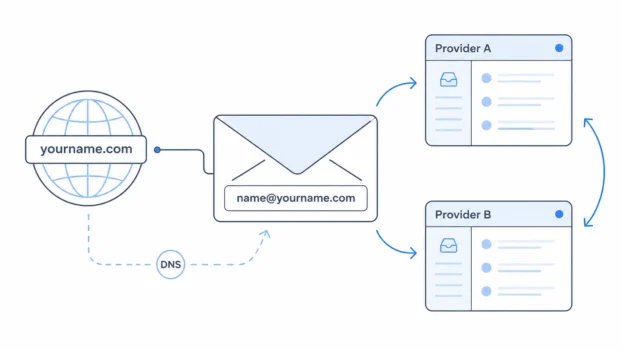
To get an email with your own domain, register a domain, choose an email provider that supports custom domains, and point the domain at that provider. The main benefit is portability: you control the address for as long as you keep the domain registered, so you can change email provider later without changing the address people use.
Quick Guide: How to Get Email on Your Own Domain
Getting an email at your own domain means owning the domain, choosing a provider to host the mailbox, and pointing one at the other. Here is the whole process.
- Register a domain
Buy the domain you want the address to use, such as yourname.com, from a registrar. This is the part you own, and it is what makes the address portable. I use Hostinger for my own domains because it is easy to manage and reliable.
- Choose an email provider that supports custom domains
Pick who will host the mailbox itself. This is a separate decision from the domain, and it is what determines your privacy, storage and features. Proton Mail supports custom domains on their paid plans.
- Verify you own the domain
Your provider gives you a TXT record to add to your domain’s DNS settings. This proves you control the domain. It does not route any mail on its own.
- Create your addresses first
Set up the addresses you want, such as hello@yourdomain.com, before you change any mail routing. If you switch routing first, mail to an address that does not exist yet can be rejected.
- Add the MX records
Add your provider’s MX records to your DNS, and delete any old ones first. MX records tell other mail servers which provider should receive mail for your domain.
- Add SPF, DKIM and DMARC
Add the authentication records your provider supplies. These help receiving servers trust your outgoing mail so it is not filtered as spam. Once they are recognised, your domain is ready to send and receive.
What owning your domain actually gets you
The most useful reason to own an email domain is not that it looks more professional. It is that your email address is no longer tied to one company.
With an address from a provider like Gmail, Outlook or Yahoo, that provider controls the part after the @. If you decide to leave, you cannot take the address with you. Everyone who has it, every account it is attached to, every subscription and login, has to be updated.
A custom address works differently. You control the domain after the @, such as yourname.com, and your email provider simply supplies the mailbox where messages are received, stored and sent. Those are two separate layers: the domain is the portable address layer, and the email provider is the replaceable mailbox layer.
Incoming email is routed using MX records, which are instructions that tell sending mail servers which provider should receive messages for your domain. If you move to another provider, you change those records so new messages go to the new one, and your public address stays exactly the same. That is the real benefit of an address like name@yourname.com. You can change the service behind it without telling a single contact.
Portability applies to the address, though, not automatically to everything inside the mailbox. Changing your MX records redirects future messages. Your existing emails, folders, contacts, calendars and filters may need to be transferred separately.
Owning the domain also gives you control over your address names, so you can create name@, hello@, billing@ or contact@ as you like. The number you can create still depends on your provider and plan, so owning the domain does not automatically give you unlimited mailboxes. You do not need a website or web hosting either. You only need control of the domain and an email service that can receive mail for it.
An email address has a local part before the @ and a domain after it. With a custom address, you control that domain instead of borrowing one that belongs to somebody else.
What a custom domain does not give you
A custom domain is not a privacy feature by itself. It does not encrypt your messages, it does not stop your email provider from processing or accessing your mail, and it does not decide how messages are stored. All of that depends on the email provider you choose.
It does not prove that a message is genuine either. The visible From address in an email can be forged. Authentication records such as SPF, DKIM and DMARC are what help receiving services detect messages that were not authorised by the domain owner, and the domain name alone provides none of that protection.
It does not automatically improve inbox placement. Providers consider factors such as authentication, the reputation of the sending domain and server, spam complaints, sending patterns and technical infrastructure. Replacing a provider’s domain with your own is not a positive delivery signal on its own.
Many people feel a custom address looks more professional or established, and that is a common reason to use one, particularly for freelance work or a side business. But it is a matter of perception. It does not guarantee greater trust or better deliverability.
You also do not own a domain permanently. A registration lasts for a fixed period and must keep being renewed.
What is actually involved
The basic process has five parts: register and control a domain, choose an email provider that supports custom domains, verify that you own the domain, create the addresses you want, and add the provider’s email records to your DNS.
DNS, or the Domain Name System, is the system that publishes instructions for a domain. A DNS record is one of those published instructions, telling internet services where something is or how to handle a request involving your domain. Your email provider will give you several records to copy into whatever service manages your DNS.
The records you will meet
An MX record tells sending mail servers which provider should receive messages for your domain. These are the records that route incoming mail. If your MX records point to Proton Mail, Proton receives your messages. Replace them with another provider’s records and future messages go to that provider instead. Correct MX records are required if a provider is going to host incoming mail for you.
SPF publishes which servers and services are allowed to send email using your domain. Your main provider will send normal messages, but an invoicing service or a website contact form might also send mail using the same domain, and each authorised sender may need including. A domain should have one SPF record. Publishing several separate ones is an error.
DKIM adds a cryptographic signature to outgoing mail that receiving servers check against a public key published in your DNS. A cryptographic signature here is a mathematical proof that helps the receiving service confirm the message was authorised by the domain and was not altered afterwards. Your provider normally creates the signature and gives you the record needed to verify it.
DMARC publishes instructions for handling messages that fail those authentication checks, and can request reports about messages claiming to come from your domain. It is not required to make a low-volume personal mailbox work, but it is worth adding because it helps receiving services handle messages that impersonate your domain, and can report attempted spoofing back to you.
At a minimum you need a registered domain, control of its DNS, an email host or forwarding service, domain verification (normally using a TXT record, which is a DNS record used to publish text information), and MX records to direct incoming mail. SPF and DKIM do not create the mailbox, but they matter for reliable outgoing email. Google requires at least one of them for messages sent to personal Gmail accounts, and using both is stronger.
Nameservers and DNS records are not the same thing
This is the single most common source of confusion, and it is worth understanding before you start.
Nameservers decide where your DNS is managed. DNS records are the individual instructions published there. You may have bought the domain from one company while another company runs its nameservers, and in that situation you must add the email records at the service that actually manages the DNS. Adding perfectly correct records in the wrong company’s control panel achieves nothing, even though the panel looks like the right place.
How difficult is it really?
Easier than it looks, but not effortless. Your email provider gives you the exact records to add, tells you where each one goes, and then checks them for you. Proton, Google and Zoho all walk you through it step by step, so you are copying values from one screen into another rather than designing an email system.
The concept is simple. The fiddly part is that small formatting mistakes can stop the whole thing working, and the errors are rarely obvious. The parts that trip people up are specific rather than technically demanding:
- Adding records where the domain was bought, rather than where its DNS is actually managed.
- Leaving old MX records in place, which can send some mail to your old provider and some to the new one.
- Changing MX records before creating your addresses, which can cause messages to be rejected because the address does not exist yet at the new provider.
- Publishing more than one SPF record.
- Copying only part of a DKIM value, which is often long enough to be cut off.
Different DNS panels also present the same information differently. One may want @ in the host field, another expects it blank, another wants the full domain name. If a record does not seem to take, that formatting difference is one of the first things to check, and your provider’s setup guide or your DNS service’s own documentation should tell you which format it expects.
How long does it take?
There is no honest universal answer. A change may be recognised within minutes, or hours. Some systems keep using an earlier record for one to three days, and Google warns that certain DNS changes can take up to 72 hours to be recognised.
This is affected by the previous TTL setting. TTL, or time to live, tells DNS systems how long they may reuse an old record before checking for an updated one. So the time you spend typing the records in may be brief, but that does not mean every service on the internet will notice them immediately.
Where to register your domain
This section contains affiliate links. We may earn a commission if you sign up through them. It costs you nothing extra and does not change what we recommend.
I register my domains with Hostinger and have used its wider service for several years, for website hosting as well as domains. I use it because the pricing is good, the admin panel is straightforward, and it has been reliable for me over a long stretch.

My own setup is a domain registered with Hostinger and a mailbox hosted by Proton Mail. When I connected the two, adding the records Proton asked for was straightforward in Hostinger’s DNS panel, and my domain was recognised and working within minutes.
That was my experience rather than a promise about how quickly yours will work. Recognition time depends on your domain’s previous records and TTL settings, so a setup that takes longer does not mean you have done anything wrong.
GoDaddy and IONOS are other well-known registrars, and it is worth comparing them on renewal price rather than the first-year offer, because the best domain provider for your email is often not the one with the cheapest introductory rate.
The important point is this: the company where you register the domain does not have to host your email. Registrars like Hostinger, GoDaddy and IONOS sell both domains and email hosting, but those are separate purchases and you do not have to buy both from the same place.
I register domains with Hostinger, but I do not keep my email there. My mailbox is at Proton, because the email provider is what determines privacy, encryption, storage and mailbox features, and that is a completely separate decision from where the domain lives.
How I set mine up
My setup has two parts: the domain is registered with Hostinger, and the mailbox is hosted by Proton Mail. The exact buttons and menu names differ between providers, but the broad process is similar.
In short, the setup is five steps:
- Verify the domain by adding a TXT record, which proves you control it.
- Create your addresses at your chosen provider before touching the routing.
- Add the provider’s MX records, deleting any old ones first, so incoming mail is directed to the right place.
- Turn on a catch-all if you want mail to reach you even at addresses you have not set up.
- Add SPF, DKIM and DMARC so your outgoing mail is trusted and not filtered as spam.
The sections below walk through each one as I did it.
First, I verified the domain. Proton asked me to add a TXT record to the domain’s DNS. That record confirmed I controlled the domain. It did not route any email or create a mailbox. It was simply proof of ownership.
Then I added Proton’s MX records. Proton uses two of them for incoming mail. Any existing MX records should be removed first, because leaving old ones in place can mean some mail is routed to the previous provider while other messages go to Proton. The order that matters is: create your addresses at Proton, remove the old MX records, then add Proton’s two. Creating the addresses first is the part people skip. If someone emails an address that does not exist at Proton after the MX records have changed, the message may not be delivered.
Then I enabled a catch-all. A catch-all receives messages sent to addresses at your domain that you have not created individually. I might have set up hello@mydomain.com, but if somebody types helo@mydomain.com the message still reaches me. Proton supports catch-all on its paid plans, and if a specific address already exists, mail goes to that address rather than the catch-all. Without one, mail to a non-existent address normally produces a bounce-back telling the sender the address does not exist.
Catch-all is useful, but it has a trade-off worth knowing. If every invented address at your domain reaches your mailbox, so does spam sent to made-up addresses, and the bounce-back that would otherwise reject those messages is doing useful work. It is not automatically the right choice for everyone.
Finally I added SPF, DKIM and DMARC. These do not encrypt anything. They help receiving services check whether mail using my domain was authorised: SPF identifies the servers allowed to send, DKIM adds the signature receiving providers verify, and DMARC tells providers how to handle mail that fails and can report attempted impersonation. Once those were recognised, the domain was ready to send and receive through Proton.
Can you get a custom domain email free?
The mailbox can be free. The domain never stays free. That distinction is the whole answer, and it is the bit most articles skip.
Whether it is a .com, a .co.uk, a .me or a country-specific ending, you register it for a fixed period and renew it to keep it. Registrations typically run from one to ten years and have to be renewed before they expire. A registrar may include the first period in another package, but the registration is still time-limited and still has to be renewed to keep anything attached to it working.
So the honest question is not really whether custom domain email is free. It is whether the mailbox can be free once the domain is taken care of. Sometimes it can.
Proton Free does not support custom domains; you need one of Proton’s paid plans. Tuta Free does not either, though any paid Tuta subscription includes them. And a normal free Gmail account cannot host a custom domain at all, because domain-hosted Gmail is a Google Workspace product.
Zoho Mail is the clearest genuinely free option that gives you an actual hosted mailbox. Its free tier covers up to five users, one custom domain, and up to 5 GB of storage per user, through Zoho’s web interface. The catches matter, though. There is no IMAP access on the free tier, and IMAP is the system that lets an email app synchronise messages with a provider’s mailbox, so without it you cannot add the account to most ordinary desktop and mobile mail apps in the usual way. Email forwarding is not included on the free tier either. And Zoho’s free plan is only available in selected data centres, so it may not be offered where you are.
Free forwarding services like Cloudflare Email Routing and ImprovMX are a different thing, and the distinction matters. Forwarding accepts an incoming message and passes it to an inbox you already have. It does not store a mailbox and usually gives you no way to send from the custom address. Cloudflare Email Routing forwards incoming mail but does not handle outbound sending at all. ImprovMX’s free tier covers one domain, up to 25 aliases and up to 500 forwarded messages a day, with no SMTP sending, which is the system used to submit and send outgoing email.
So free forwarding gives you an address that redirects messages somewhere else. It does not give you a hosted inbox, sent-mail storage, a complete account, or a built-in way to reply from your own address.
The short version: the domain is an ongoing commitment whatever you do. After that, Zoho can give you a real free mailbox with real restrictions, and the other free options we checked provide forwarding rather than a hosted mailbox.
Can you use your own domain with Gmail?
Not on a free Gmail account. To have Google receive and store mail directly for an address like name@yourdomain.com, you need Google Workspace, which means verifying control of the domain (normally with a TXT record), pointing the domain’s MX record at Google, and maintaining an active subscription.
One useful detail if you are following a guide: new Workspace setups use a single MX value, smtp.google.com. Older guides still show five MX records beginning with aspmx. Google continues to support that arrangement for existing setups, but a guide telling new users to add the five older records is following Google’s legacy configuration rather than its current one.
What “Send mail as” actually does
Free Gmail includes a feature called Send mail as, and it is routinely confused with hosting your own domain. It lets you send from another email address that already exists somewhere else. It does not create that address, host its mailbox, or point your domain at Gmail.
Some configurations need the SMTP server and login details of the external account, which means another provider is still doing the actual sending. Recipients may sometimes see the Gmail address anyway, or wording like “on behalf of”, and replies can return to the Gmail address unless you also change the reply-to setting.
Forwarding custom-domain mail into Gmail
There is a workaround that does function. A forwarding service such as Cloudflare Email Routing or ImprovMX can receive mail for your domain and forward it into a free Gmail inbox. Gmail then becomes the destination, but it is not hosting the domain.
Sending from the custom address remains a separate problem, and you may need an external SMTP service or another provider that supports outbound mail. Someone who likes Gmail’s interface but does not want Workspace may find this workable, though it is less complete than proper hosting and more fiddly to set up. Other Gmail alternatives support custom domains directly, although usually only on paid plans.
What about privacy?
Using a custom domain and choosing a private email provider are two separate decisions, and this is where most articles blur things.
The domain controls your public address and where mail is routed. The provider controls the mailbox itself: storage, privacy practices, encryption and features. You can use the same custom domain with Google Workspace, Zoho, Proton Mail, Tuta Mail or another compatible provider. Moving your domain to a privacy-focused provider improves your mailbox privacy because you changed provider, not because the domain became private. And you can move the same address again later by changing its MX records.
Proton Mail supports custom domains on its paid plans:
| Plan | Users | Total addresses | Custom domains |
|---|---|---|---|
| Mail Plus | 1 | Up to 10 | 1 |
| Unlimited | 1 | Up to 15 | 3 |
| Duo | 2 | 30 | 3 |
| Family | Up to 6 | 90 | 3 |
Those address allowances are account-wide totals rather than separate allowances for each domain. A custom domain hosted at Proton uses Proton’s mailbox system and protections, but the domain itself does not create them. That distinction also matters when comparing Proton Mail and Gmail, because the address can look identical at either provider while the service behind it handles privacy, storage and encryption completely differently.

Tuta Mail supports custom domains on its paid subscriptions, with three domains on Revolutionary and ten on Legend. Addresses created using your own domains are unlimited on paid plans. The figures of 15 and 30 addresses sometimes quoted for those plans refer to additional addresses on Tuta’s own domains, not on yours. As with Proton, the privacy comes from Tuta as the mailbox provider, not from registering a domain.
The downsides of using your own domain
A custom email domain gives you more control, but it also creates a dependency that an ordinary provider-owned address does not have.
If the domain expires, your email can stop working
Your mailbox subscription and your domain registration are separate things. You could keep paying your email provider faithfully and still lose working email if the domain lapses, because incoming messages depend on the domain continuing to exist and publish the right records.
Recovery after expiry is not guaranteed to be immediate, and the available grace period varies between registrars. A domain that stays expired may eventually be deleted and become available to someone else. If another person registers it and publishes new MX records, they could start receiving new messages sent to addresses at that domain, which is especially serious if the address is used for password resets or account recovery.
So keep automatic renewal on where you can, keep the registrar’s payment details and contact email current, and avoid using an address on the same domain as the only recovery method for the registrar account itself. Losing a domain affects every address connected to it, not just one mailbox.
Deliverability is not automatically better or worse
There is no evidence that a normal, authenticated custom domain used for ordinary personal correspondence is less deliverable than a provider-owned address. Problems are much more likely when authentication is missing, or when a domain starts sending bulk or promotional mail with no established history.
A new bulk sender should start with low volume and build gradually, because sudden increases can trigger rate limits or damage reputation. Missing SPF or DKIM makes messages more likely to be rejected or filtered, and repeated spam complaints damage a domain’s reputation over time. Your provider’s sending infrastructure matters too, since several customers may share an outgoing IP address and the behaviour of other senders contributes to its reputation. For ordinary one-to-one email, the practical priority is to configure the provider’s records correctly and avoid sudden high-volume or unsolicited sending.
When a custom domain is the worse choice
It is not necessary for everyone. It is a poor fit if you are not confident you will renew it reliably, or if you want no administration beyond remembering one mailbox password. There may be little point if you do not need a public-facing address, several named addresses, a long-term identity, or the ability to change provider without changing address.
It can also be a poor choice for a short-lived project whose name may change, and using it as the sole recovery address for important accounts introduces real risk, because if the domain expires or its DNS breaks, recovery messages stop reaching you. A normal provider-owned address avoids all the registrar and DNS responsibility, and for a lot of people that simplicity is worth more than portability.
Ongoing maintenance
A correctly configured low-volume personal mailbox needs very little regular attention. You still need to renew the domain, keep the registrar account secure, update DNS if you change email provider, update SPF and DKIM when you add a service that sends as your domain, and keep your list of addresses current.
Website forms, newsletter services and invoicing tools can send email using your domain, so adding one later may mean revisiting SPF or DKIM. It is not completely maintenance-free, but once it is set up properly it should not need constant work.
A custom email domain is most useful when you want an address that stays yours even if the mailbox provider changes. It is worth doing if you value that portability and will keep the registration alive. If you would rather have one less account, renewal and technical setting to think about, an ordinary email address remains a perfectly reasonable choice.
FAQ
Can I use one domain with more than one email provider? Not for receiving mail at the same time in the normal way, because your MX records point incoming mail to a single provider. You can move the whole domain to a different provider by changing those records, and some setups use subdomains or forwarding for more advanced arrangements, but for a normal mailbox you choose one provider to receive mail at a time.
What happens to my email if I move the domain to a different registrar? Your email keeps working as long as the DNS records stay in place through the transfer. A domain transfer moves who you pay and manage the registration through, not necessarily where the mail goes. The risk is that DNS is sometimes reset during a transfer, so check that your MX, SPF, DKIM and DMARC records are still present afterwards.
Do I need any technical skill to set this up? No coding, and no need to understand how email works underneath. You are copying records your provider gives you into your domain’s DNS settings. The hardest part is usually finding the right place to add them and copying long values without cutting them off.
What is the difference between an alias and a separate mailbox on my domain? An alias is another address that delivers into an existing mailbox, so hello@ and contact@ can both arrive in the same inbox. A separate mailbox is its own account with its own login and storage. Most providers let you create aliases easily; separate mailboxes usually count towards your plan’s user or address limit.