
 Bobby Wilson
You can usually unsend an email only for a few seconds after pressing Send. Many email services offer Undo Send, a brief delay that lets you cancel before the message goes. Once that time has passed, you generally cannot take the email back, although some Outlook work or school accounts offer Recall, an attempt to remove an already-sent email.
Can you unsend an email after sending it?
It depends on which email service you use and whether you still have time to cancel the message.
What does Undo Send actually do?
Undo Send holds your email briefly before it is sent. If you select Undo during that delay, the message is cancelled rather than delivered. The person you were writing to does not receive the cancelled message, so there is no email in their inbox to remove.
The time you have depends on the service and sometimes on the settings you have chosen. Some services give you only a few seconds by default, while others let you choose a longer delay. Once that time runs out, the message can continue on its way and the Undo option no longer works.
How is recalling an email different?
Recall is an attempt to remove an email after it has already been sent. Unlike Undo Send, it is available only in certain email systems and does not always succeed. Some Outlook work or school accounts support recall, but ordinary personal email accounts generally cannot retrieve a delivered message.
Can you unsend an email after an hour or a day?
Not with ordinary Undo Send. Whether an hour or a day has passed, the time limit will be over. Deleting an email from your Sent folder, where your sent messages are stored, removes your own copy, not the recipient’s. The one exception is Recall on some Outlook work or school accounts, and even that may not work.
How to unsend an email in different email services
The available option, time limit and settings depend on the email service and the device you use.
How to unsend an email in Gmail
Gmail usually gives you five seconds to cancel an email unless you have changed the setting. On a computer, follow these steps:
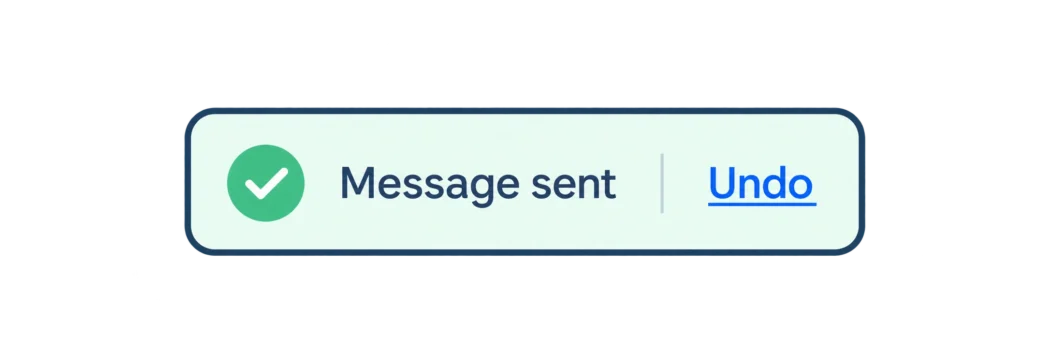
- After pressing Send, look for Message sent at the bottom left of the screen.
- Select Undo before the time runs out.
You can give yourself longer on a computer. Open Settings > See all settings > Undo Send, choose 5, 10, 20 or 30 seconds, then select Save changes.
Gmail’s phone apps also provide an Undo option after sending. You can only change the time limit on a computer, so on a phone act at once.
Gmail has no separate recall feature, so Undo is the only way to take an email back.
How to unsend an email in Outlook.com or new Outlook
Personal Outlook.com, Hotmail and Live accounts cannot recall an email once it has been sent. Outlook.com and new Outlook offer Undo Send instead, but it is switched off by default. You need to enable it before you send the email you might want to cancel.
- Open Settings > Mail > Compose and reply and find Undo send.
- Choose the longest delay on offer, then select Save.
- After sending an email, select Undo when the prompt appears, before the delay ends.
The Outlook phone apps may not show an Undo option.
How to recall an email in Outlook with a work or school account
Some work or school accounts can recall messages after they have been sent. This usually works between people who use Microsoft 365, the email system many workplaces and schools use, in the same organisation. Whether an email can still be removed once it has been opened depends on how the organisation has set things up.
In Sent Items, the folder containing emails you have sent, double-click the email so it opens in its own window, then find the recall command. Its name and position differ between versions, so the steps for recalling an email in Outlook depend on which one you use. Recall is not guaranteed to work, and Outlook sends you a report showing whether it succeeded.
How to unsend an email in Apple Mail
Apple Mail gives you ten seconds to cancel an outgoing email by default. You can change the delay to 10, 20 or 30 seconds, or turn Undo Send off.
- After sending, look for Undo Send in your inbox on an iPhone or iPad, or at the bottom of the Mail sidebar on a Mac.
- Tap or click Undo Send before the time runs out. The message opens again as a draft, meaning an unfinished email you can edit before sending.
On an iPhone or iPad, change the delay under Settings > Apps > Mail > Undo Send Delay. On a Mac, use Mail > Settings > Composing. You can also select Edit > Undo on a Mac while the option is still available.
Can you unsend an email in Yahoo Mail or AOL Mail?
Yahoo Mail does not let you recall an email after it has been sent, and its website has no Undo Send. The Yahoo Mail phone app may show an Undo option for a few seconds straight after you send.
AOL Mail has no Undo Send or message recall.
How to unsend an email in Proton Mail or Tuta Mail
Proton Mail provides Undo Send on the web, Android, iPhone and iPad, with a default delay of ten seconds. You can choose 0 (off), 5, 10 or 20 seconds, and the setting carries across your devices.
Tuta Mail offers a ten-second Undo Send delay, but you must switch the feature on first. Open Settings > Email > Undo Send to enable it.
What to do if you cannot unsend an email
If the time limit has passed, you generally cannot remove the email from the other person’s inbox. What you do next depends on what went wrong.
Send a correction or apology
If you made a mistake, send a follow-up with the correct information. For a missing attachment, send another email with the file attached and briefly explain what was missing. An apology may help if the error caused confusion or inconvenience.
Keep the correction clear so the recipient knows which information to use. One short message is generally more useful than several follow-ups about the same mistake.
Ask the recipient to delete the email
If you sent an email to the wrong person, contact them promptly. Explain the mistake and ask them to delete the message and not forward it, if appropriate. This is a request, not a way to remove the email yourself.
You cannot ordinarily delete an email from another person’s inbox. They may not delete it even if you ask, and removing it from your own Sent folder does not affect their copy.
Protect any sensitive information you sent
If the email contained a password, change it promptly so the old password can no longer be used. If you sent a link to a shared document, remove access where possible. For other private information, consider who received it and what you need to protect.
The appropriate response depends on what was disclosed. A forgotten attachment and an exposed password need different responses. Not every sending mistake is a serious security incident.
How to give yourself more time before sending emails
Where your email service allows it, increase the Undo Send delay so you have longer to spot a mistake. Before pressing Send, check the recipient’s address, your message and any attachments.
You can also schedule an email to send later, giving yourself more time to review it beforehand. Scheduling does not retrieve an email that has already been delivered.